

These are the original Data Apps. The new Next Gen Data
Apps is now available in all
workspaces. Classic apps keep working as described on this page; the listing
badges these apps Classic and next-gen apps Next Gen.
- An overview of key company or department metrics that refreshes daily
- An advanced analysis you want to share in a visual form and keep up to date with new data
Creating a Data App
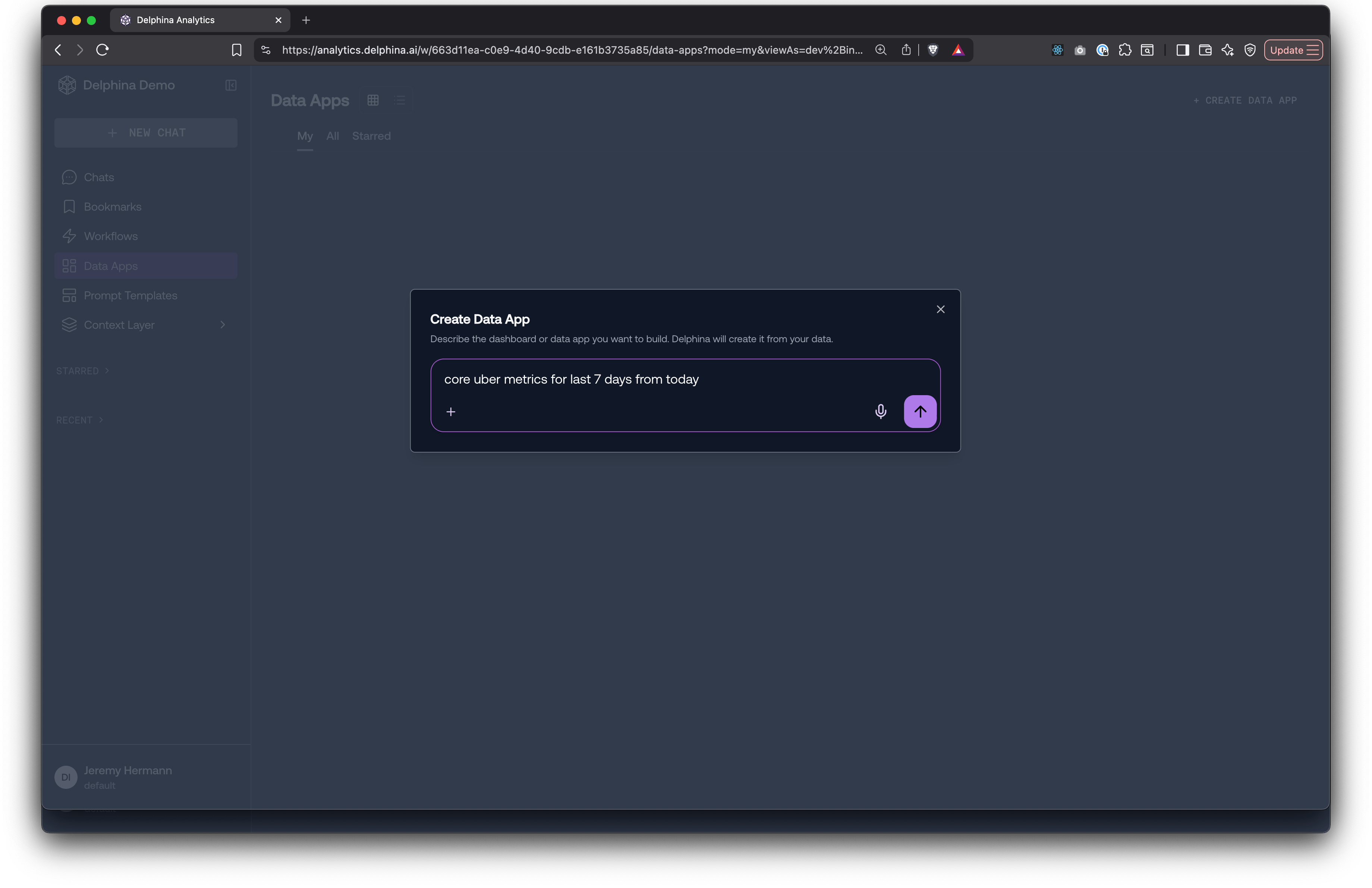
- Start in chat. Ask Delphina to analyze your data — describe what you want to see, and iterate until the output looks right.
- Create it. Type “create data app” in the chat. Delphina extracts the pipeline (SQL, Python, and rendering steps) from your conversation and packages it as a Data App. It appears as a file in the chat that you can open and interact with.
- Iterate. Refine the output — adjust charts, add filters, change the layout — until you’re happy.
- Save it. Click the Save button to save your changes. The Data App now appears on the Data Apps page in the sidebar.
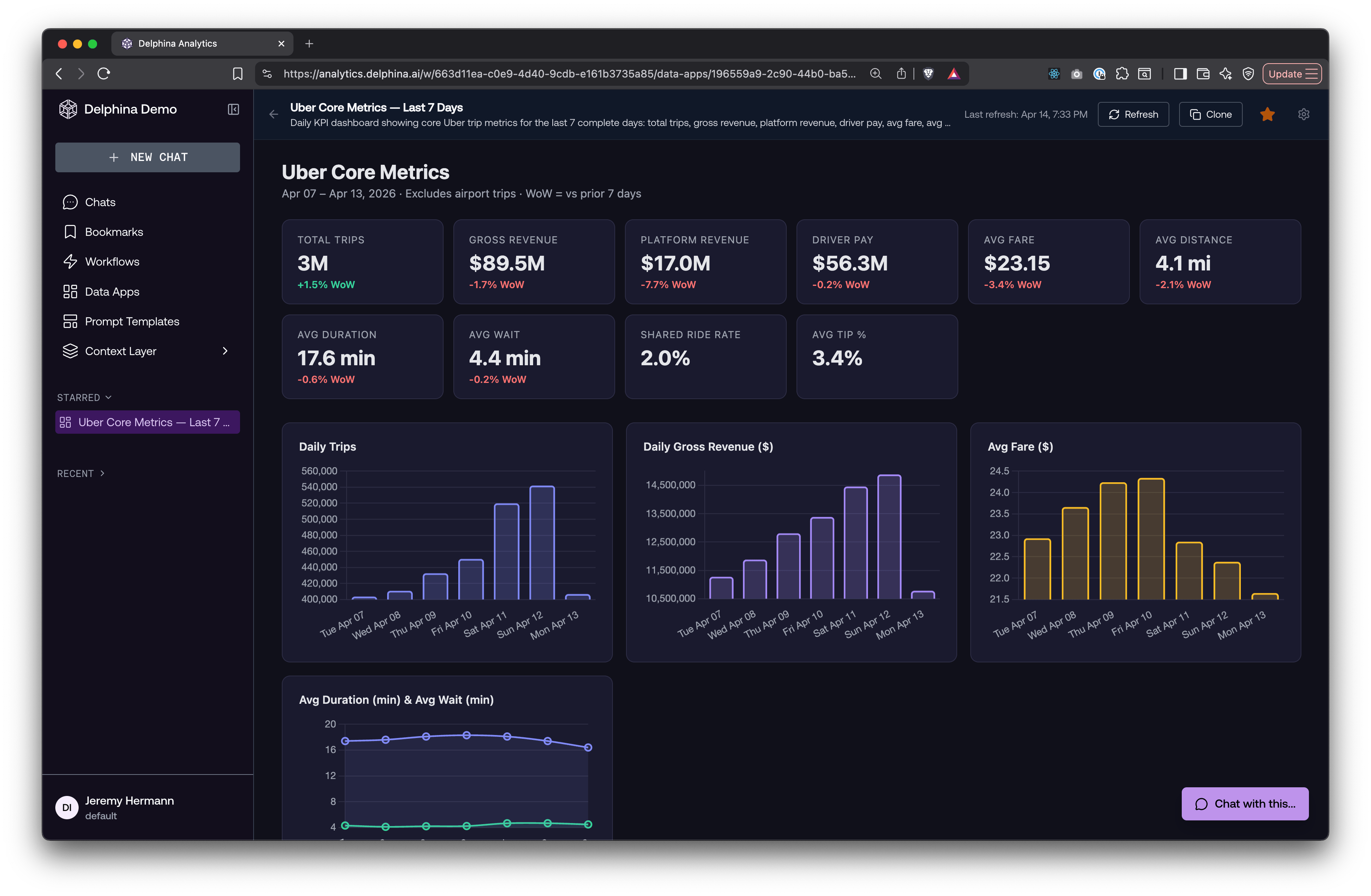
Viewing a Data App
Click any Data App from the listing to open it full-screen. The rendered dashboard loads in the main content area. From here you can:- Refresh the dashboard with the latest data (owners only — see Ownership)
- Chat with the Data App to ask questions about its output or modify it
- Star it for quick access from the sidebar
The pipeline
Every Data App has an underlying pipeline — an ordered sequence of steps that produce the dashboard:
View the pipeline in Settings > Pipeline. Each step shows its type, description, and code.
Refreshing
Manual refresh — Click the Refresh button on a Data App you own. Delphina re-runs the pipeline against your current warehouse data and updates the dashboard. Scheduled refresh — In Settings > General, switch from “On-demand” to “Scheduled” and pick a frequency (e.g., daily, weekly, or a custom cron expression). Refreshes always run using the owner’s data connections — including scheduled refreshes — so what the app shows reflects the owner’s data access (see Ownership).Chatting with a Data App
Click “Chat with this data app” on any Data App to open a conversation about its current output. For example:- “What happened on April 12?”
- “Which region had the highest growth?”
- “Can you add a trend line to this chart?”
Versions
Every time a Data App’s pipeline definition is updated, a new version is created automatically. You can view the full version history in Settings > Versions; the owner can restore any previous version if needed.Ownership and permissions
Every Data App has a single owner — initially the person who created it. When a Data App refreshes, its pipeline runs using the owner’s data connections, no matter who triggered the refresh or whether it ran on a schedule. Because the owner’s credentials execute the app’s code, changing the app is reserved for the owner:- The owner can do everything: modify the app through chat and save changes, refresh it, restore earlier versions, change its settings and schedule, manage its editors, and delete it.
- Editors — teammates added under Settings > Editors — can update the app’s settings: name, description, schedule, and publishing. They can’t change the app’s content or refresh it, since that would run their changes under the owner’s data credentials.
- Workspace Developers and org admins can do what editors can, and can also manage the app’s editor list and delete the app.
- Everyone else in the workspace can view, star, clone, and chat with (ask questions of) a Data App — provided they can discover it (see Publishing) or have the direct URL.
Claiming ownership
If you need to change an app you don’t own, you have two options:- Clone it (⋯ menu) to get your own copy with an independent history.
- Claim ownership (⋯ menu) to take the app over in place. Claiming is available to the app’s editors, workspace Developers, and org admins.
Publishing
By default, a new Data App is only visible to its owner and to Developers (who can see everything). To make a Data App discoverable by Explorers and Viewers in the workspace, toggle the Publish icon in the top bar or on the listing page.
Publishing controls discoverability, not access. Anyone in the workspace can still open a Data App if they have the direct URL — publishing just determines whether it appears in the listing for Explorers and Viewers.
Listing page tabs
The Data Apps listing organizes apps into tabs:
Viewers see only the Starred and Published tabs.
Starring and cloning
Starring — Click the star icon on any Data App to add it to your Starred section in the sidebar. Starred Data Apps also float to the top of the listing page. Cloning — Choose Clone from the ⋯ menu to create a copy of any Data App. Any Explorer or Developer in the workspace can clone. The clone starts with the same pipeline and output but has independent version history — and you own the copy.Known issues
The following are known issues that will be fixed soon:- Data Apps may be created when not explicitly requested. The agent sometimes creates a Data App on its own during a chat session. If this happens, you can delete the unwanted Data App from its settings page.
-
Extra context is prepended to your messages. When you chat with a Data App, Delphina automatically adds context to your message so the agent knows which Data App you’re viewing. You may see this in the chat as a bracketed prefix like
[Data app: "Dashboard Name" (id) — the user is viewing this app...]. This is expected behavior and helps the agent give relevant answers, but the formatting will be cleaned up in a coming release.