> ## Documentation Index
> Fetch the complete documentation index at: https://docs.delphina.ai/llms.txt
> Use this file to discover all available pages before exploring further.
# Data Apps
> AI-native dashboards — quick to build, easy to iterate on, and always up to date
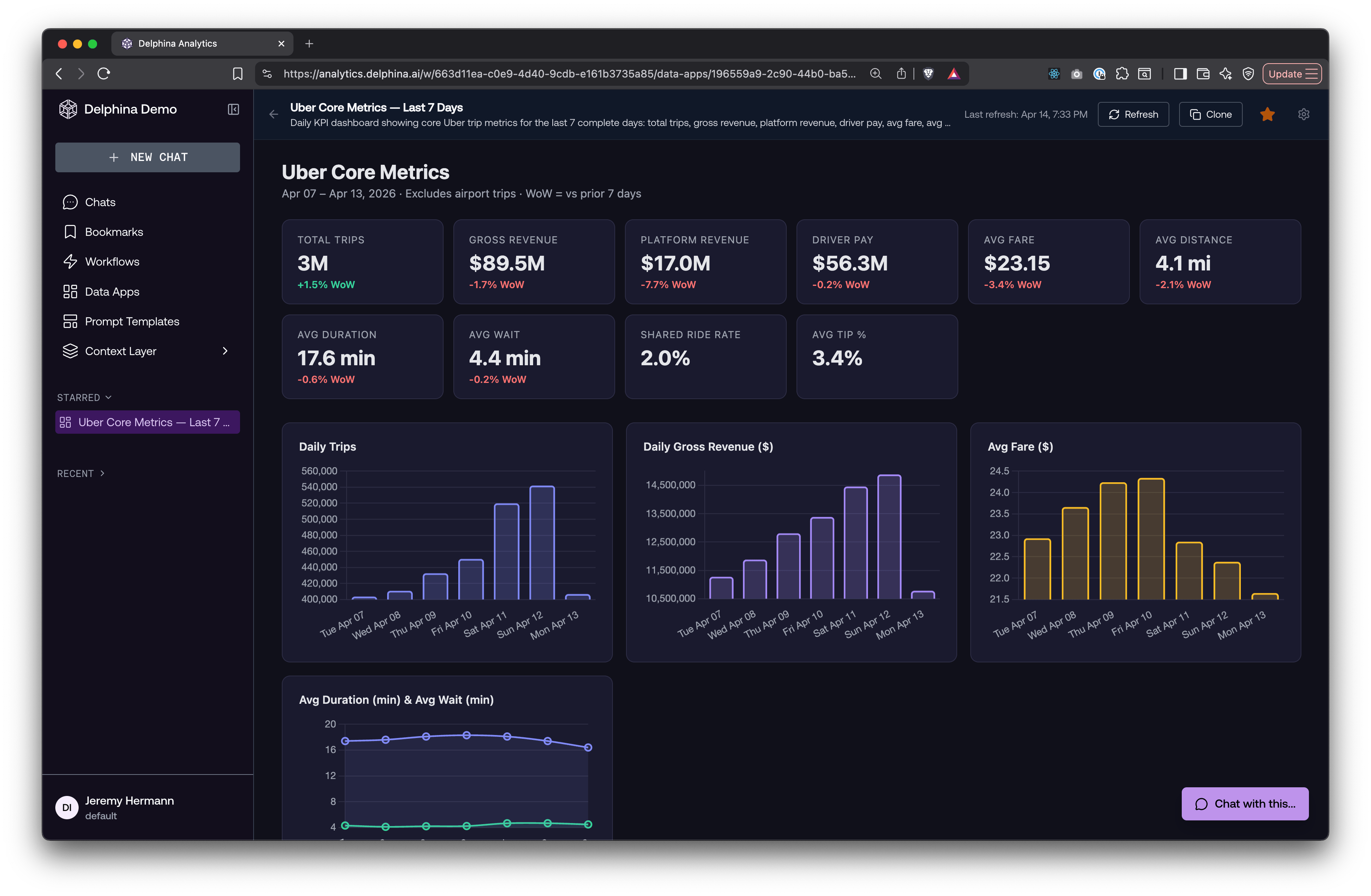
Data Apps are **AI-native dashboards** — quick to build, easy to iterate on, and always up to date. Use Delphina's chat to explore and analyze your data, then create a Data App to turn that analysis into a live, refreshable dashboard.
Under the hood, a Data App is a saved pipeline — the SQL queries, transformations, and visualization code that produced your analysis — packaged so it can re-run on demand or on a schedule.
For example:
* An overview of key company or department metrics that refreshes daily
* An advanced analysis you want to share in a visual form and keep up to date with new data
 ## Creating a Data App
1. **Start in chat.** Ask Delphina to analyze your data — describe what you want to see, and iterate until the output looks right.
2. **Create it.** Type **"create data app"** in the chat. Delphina extracts the pipeline (SQL, Python, and rendering steps) from your conversation and packages it as a Data App. It appears as a file in the chat that you can open and interact with.
3. **Iterate.** Refine the output — adjust charts, add filters, change the layout — until you're happy.
4. **Save it.** Click the **Save** button to save your changes. The Data App now appears on the **Data Apps** page in the sidebar.
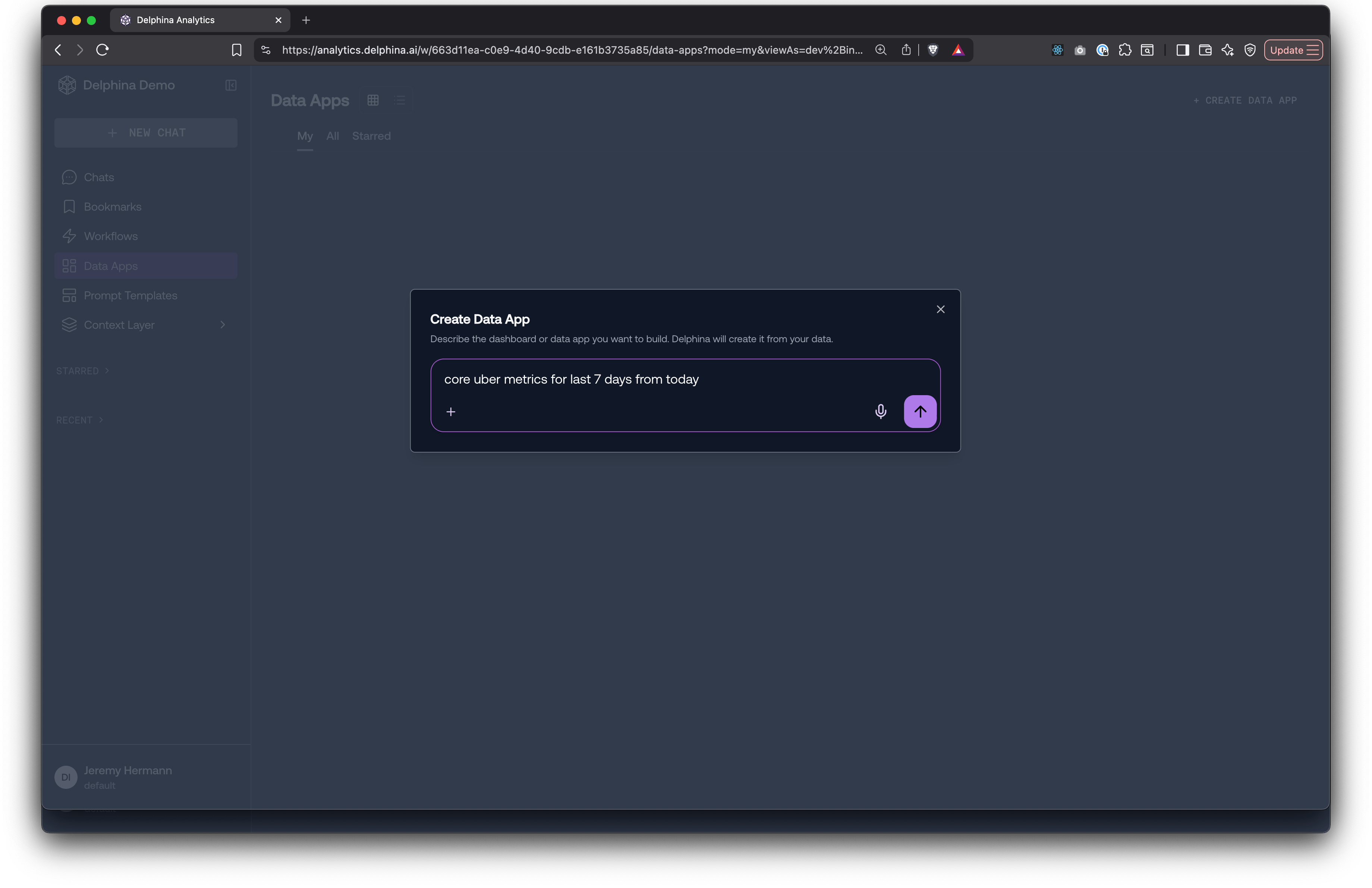
You can also click **+ Create Data App** from the Data Apps page. This opens a prompt where you describe what you want, and Delphina builds it from scratch. From there, iterate until you're happy, then click **Save**.
## Creating a Data App
1. **Start in chat.** Ask Delphina to analyze your data — describe what you want to see, and iterate until the output looks right.
2. **Create it.** Type **"create data app"** in the chat. Delphina extracts the pipeline (SQL, Python, and rendering steps) from your conversation and packages it as a Data App. It appears as a file in the chat that you can open and interact with.
3. **Iterate.** Refine the output — adjust charts, add filters, change the layout — until you're happy.
4. **Save it.** Click the **Save** button to save your changes. The Data App now appears on the **Data Apps** page in the sidebar.
You can also click **+ Create Data App** from the Data Apps page. This opens a prompt where you describe what you want, and Delphina builds it from scratch. From there, iterate until you're happy, then click **Save**.
 ## Viewing a Data App
Click any Data App from the listing to open it full-screen. The rendered dashboard loads in the main content area. From here you can:
* **Refresh** the dashboard with the latest data
* **Chat** with the Data App to ask questions about its output or modify it
* **Clone** it to create your own copy
* **Star** it for quick access from the sidebar
## The pipeline
Every Data App has an underlying **pipeline** — an ordered sequence of steps that produce the dashboard:
| Step type | What it does |
| ---------- | --------------------------------------------- |
| **SQL** | Queries your data warehouse |
| **DuckDB** | Runs local SQL transforms on staged data |
| **Python** | Runs Python code (transforms, HTML rendering) |
| **Bash** | Runs shell commands |
View the pipeline in **Settings > Pipeline**. Each step shows its type, description, and code.
## Refreshing
**Manual refresh** — Click the **Refresh** button on a Data App you own. Delphina re-runs the pipeline against your current warehouse data and updates the dashboard.
**Scheduled refresh** — In **Settings > General**, switch from "On-demand" to "Scheduled" and pick a frequency (e.g., daily, weekly, or a custom cron expression).
## Chatting with a Data App
Click **"Chat with this data app"** on any Data App to open a conversation about its current output. For example:
* "What happened on April 12?"
* "Which region had the highest growth?"
* "Can you add a trend line to this chart?"
Delphina loads the Data App's pipeline and current output into the conversation, so it has full context to answer questions or make modifications. You can also use this to modify the Data App — then click **Save** to save it as an update to the current one, or as a new Data App.
## Versions
Every time a Data App's pipeline definition is updated, a new **version** is created automatically. You can view the full version history in **Settings > Versions** and restore any previous version if needed.
## Ownership
The person who creates a Data App is its **owner**. The owner, workspace Developers, and org admins can:
* Edit the name, description, or schedule
* Manually refresh the dashboard
* Delete the Data App
Everyone else in the workspace can view, clone, star, and chat with a Data App — provided they can discover it (see [Publishing](#publishing)) or have the direct URL.
## Publishing
By default, a new Data App is only visible to its owner and to Developers (who can see everything). To make a Data App discoverable by Explorers and Viewers in the workspace, toggle the **Publish** icon in the top bar or on the listing page.
| Role | What they see on the Data Apps listing |
| --------------------- | ----------------------------------------- |
| **Developer** | All Data Apps in the workspace |
| **Explorer / Viewer** | Their own Data Apps + published Data Apps |
Publishing controls **discoverability**, not access. Anyone in the workspace can still open a Data App if they have the direct URL — publishing just determines whether it appears in the listing for Explorers and Viewers.
## Listing page tabs
The Data Apps listing organizes apps into tabs:
| Tab | What it shows |
| ------------- | ------------------------------------ |
| **My** | Data Apps you created |
| **Starred** | Data Apps you've starred |
| **Published** | Data Apps published to the workspace |
| **All** | Every Data App in the workspace |
Viewers see only the **Starred** and **Published** tabs.
## Starring and cloning
**Starring** — Click the star icon on any Data App to add it to your **Starred** section in the sidebar. Starred Data Apps also float to the top of the listing page.
**Cloning** — Click **Clone** to create a copy of any Data App. Any Explorer or Developer in the workspace can clone. The clone starts with the same pipeline and output but has independent version history.
## Known issues
The following are known issues that will be fixed soon:
1. **Data Apps may be created when not explicitly requested.** The agent sometimes creates a Data App on its own during a chat session. If this happens, you can delete the unwanted Data App from its settings page.
2. **Extra context is prepended to your messages.** When you chat with a Data App, Delphina automatically adds context to your message so the agent knows which Data App you're viewing. You may see this in the chat as a bracketed prefix like `[Data app: "Dashboard Name" (id) — the user is viewing this app...]`. This is expected behavior and helps the agent give relevant answers, but the formatting will be cleaned up in a coming release.
## Viewing a Data App
Click any Data App from the listing to open it full-screen. The rendered dashboard loads in the main content area. From here you can:
* **Refresh** the dashboard with the latest data
* **Chat** with the Data App to ask questions about its output or modify it
* **Clone** it to create your own copy
* **Star** it for quick access from the sidebar
## The pipeline
Every Data App has an underlying **pipeline** — an ordered sequence of steps that produce the dashboard:
| Step type | What it does |
| ---------- | --------------------------------------------- |
| **SQL** | Queries your data warehouse |
| **DuckDB** | Runs local SQL transforms on staged data |
| **Python** | Runs Python code (transforms, HTML rendering) |
| **Bash** | Runs shell commands |
View the pipeline in **Settings > Pipeline**. Each step shows its type, description, and code.
## Refreshing
**Manual refresh** — Click the **Refresh** button on a Data App you own. Delphina re-runs the pipeline against your current warehouse data and updates the dashboard.
**Scheduled refresh** — In **Settings > General**, switch from "On-demand" to "Scheduled" and pick a frequency (e.g., daily, weekly, or a custom cron expression).
## Chatting with a Data App
Click **"Chat with this data app"** on any Data App to open a conversation about its current output. For example:
* "What happened on April 12?"
* "Which region had the highest growth?"
* "Can you add a trend line to this chart?"
Delphina loads the Data App's pipeline and current output into the conversation, so it has full context to answer questions or make modifications. You can also use this to modify the Data App — then click **Save** to save it as an update to the current one, or as a new Data App.
## Versions
Every time a Data App's pipeline definition is updated, a new **version** is created automatically. You can view the full version history in **Settings > Versions** and restore any previous version if needed.
## Ownership
The person who creates a Data App is its **owner**. The owner, workspace Developers, and org admins can:
* Edit the name, description, or schedule
* Manually refresh the dashboard
* Delete the Data App
Everyone else in the workspace can view, clone, star, and chat with a Data App — provided they can discover it (see [Publishing](#publishing)) or have the direct URL.
## Publishing
By default, a new Data App is only visible to its owner and to Developers (who can see everything). To make a Data App discoverable by Explorers and Viewers in the workspace, toggle the **Publish** icon in the top bar or on the listing page.
| Role | What they see on the Data Apps listing |
| --------------------- | ----------------------------------------- |
| **Developer** | All Data Apps in the workspace |
| **Explorer / Viewer** | Their own Data Apps + published Data Apps |
Publishing controls **discoverability**, not access. Anyone in the workspace can still open a Data App if they have the direct URL — publishing just determines whether it appears in the listing for Explorers and Viewers.
## Listing page tabs
The Data Apps listing organizes apps into tabs:
| Tab | What it shows |
| ------------- | ------------------------------------ |
| **My** | Data Apps you created |
| **Starred** | Data Apps you've starred |
| **Published** | Data Apps published to the workspace |
| **All** | Every Data App in the workspace |
Viewers see only the **Starred** and **Published** tabs.
## Starring and cloning
**Starring** — Click the star icon on any Data App to add it to your **Starred** section in the sidebar. Starred Data Apps also float to the top of the listing page.
**Cloning** — Click **Clone** to create a copy of any Data App. Any Explorer or Developer in the workspace can clone. The clone starts with the same pipeline and output but has independent version history.
## Known issues
The following are known issues that will be fixed soon:
1. **Data Apps may be created when not explicitly requested.** The agent sometimes creates a Data App on its own during a chat session. If this happens, you can delete the unwanted Data App from its settings page.
2. **Extra context is prepended to your messages.** When you chat with a Data App, Delphina automatically adds context to your message so the agent knows which Data App you're viewing. You may see this in the chat as a bracketed prefix like `[Data app: "Dashboard Name" (id) — the user is viewing this app...]`. This is expected behavior and helps the agent give relevant answers, but the formatting will be cleaned up in a coming release.